Spaces
A space is one team's or one project's part of the Knowledge Base, the way a team has its own board and its own people. Each space has its own personas, its own topic types and work breakdown, its own flows, orchestrations and branches, and the topics written in it.
What the teams have in common is shared by every space in the workspace: the information sources, and the ground layer read from them. Every team sees the same repositories, pages and tickets.
| Each space has its own | Shared by every space |
|---|---|
| personas and topic types | the information sources (Layer 1) |
| the work breakdown: projects, features, steps | the ground layer |
| flows and orchestrations | Git Repos, AI providers, the rest of Workspace settings |
| branches and chats | |
| the topics written in it |
Read across, write in your own
You read and write in one space at a time. The other spaces' topics can be read and linked to, but not changed: a topic is written in the space it belongs to. So the payments team can link its design to the webshop team's use case, and only the webshop team changes that use case.
A topic's Links tab shows its links into other spaces even without All spaces, marked with the space, such as in Webshop. A click opens the topic at the other end beside your lane.
Spaces or workspaces?
Both separate teams, in different ways:
| Workspaces | Spaces | |
|---|---|---|
| What they are | separate tenants on one server | teams or projects inside one workspace |
| Sources and settings | each its own | shared |
| Seeing each other's knowledge | no | yes, read-only |
| Who sets them up | an admin, from the header | an admin, under Workspace settings |
Use workspaces when nothing should be shared, such as two customers. Use spaces for teams that work on the same systems.
The Knowledge Base page with spaces
With one space, the Knowledge Base page looks as before. Once there are two or more:
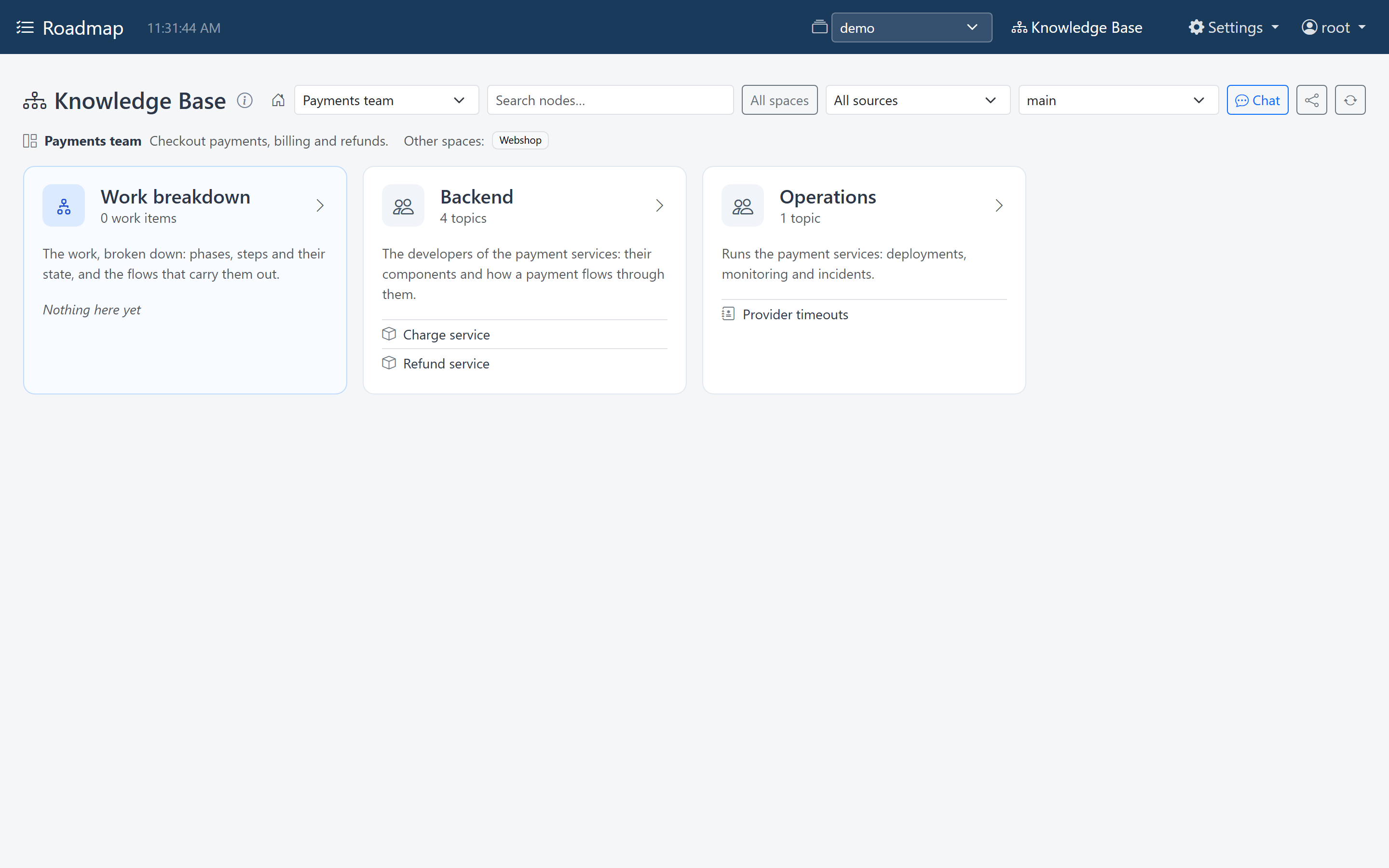
- A space picker next to the search box switches the page to another space.
The page reloads in it, the way switching workspace does, and the address carries
the space as
?space=<id>. - The home page names the space you are in, with its description, and links to the other spaces.
-
All spaces, next to the search box, adds the other spaces' topics to a search. They show in the ground layer graph.

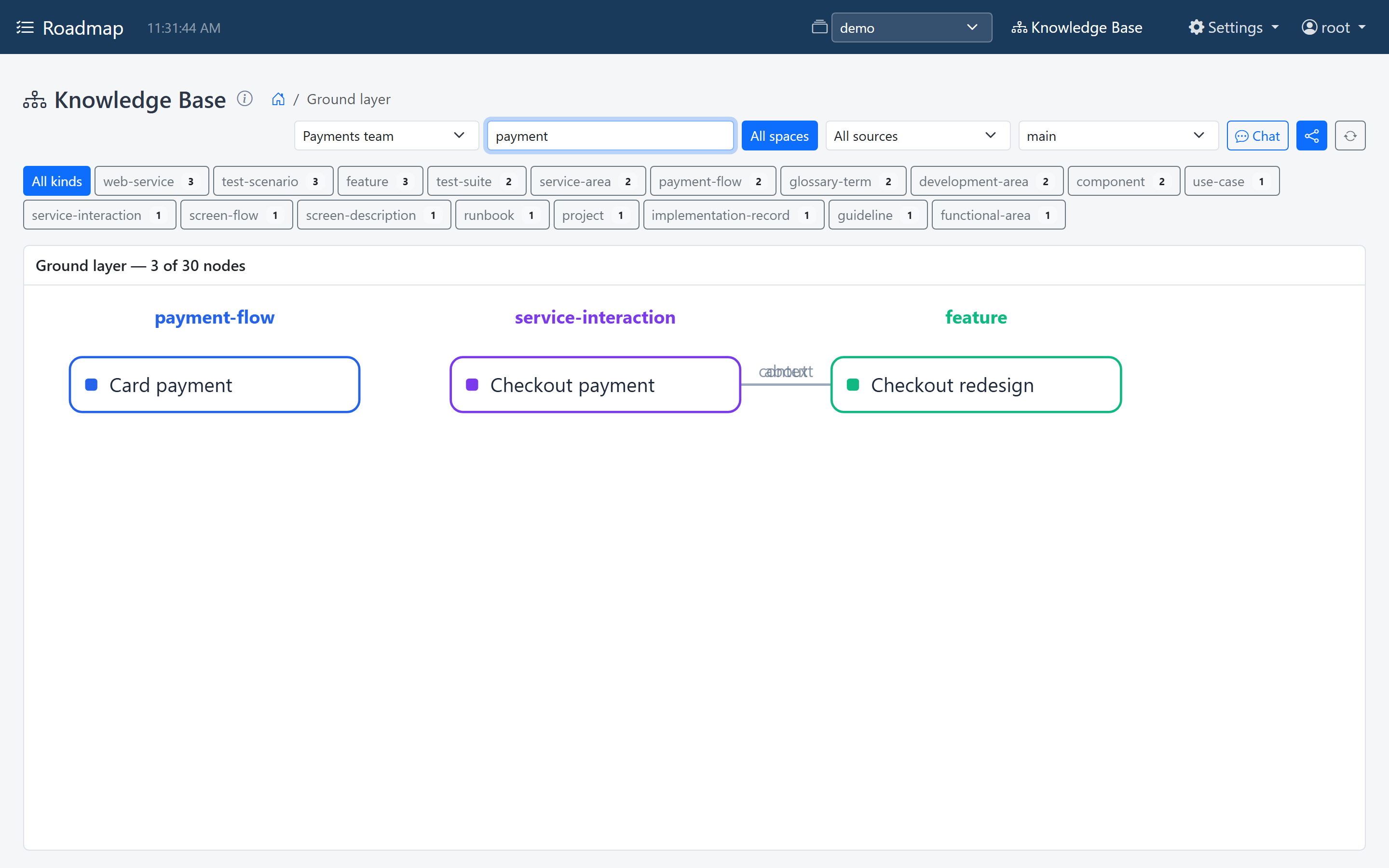
-
In the graph, the other spaces' topics are drawn with a dashed border.
-
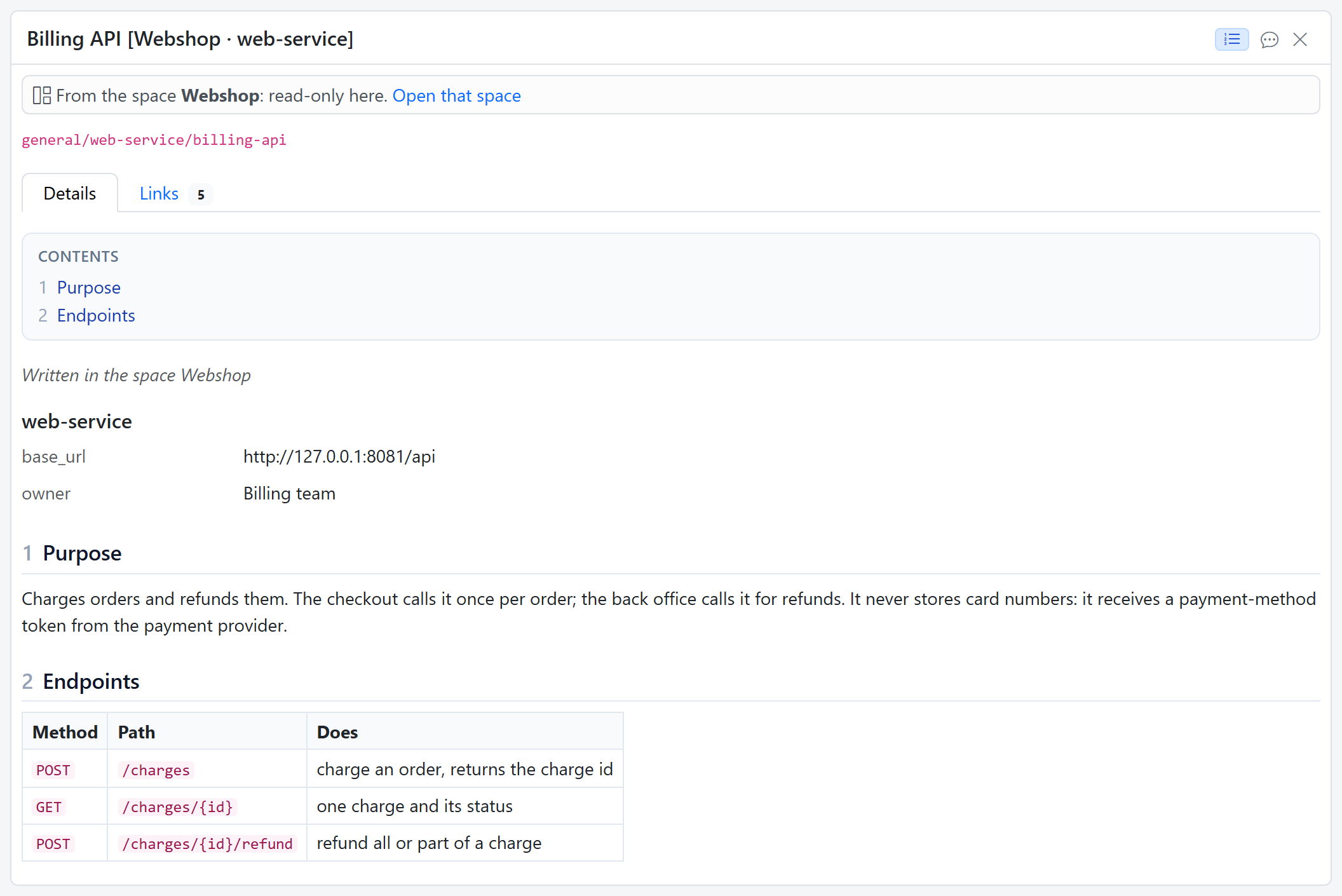
A topic of another space opens read-only: From the space ...: read-only here, with a link to Open that space. Its title names the space, and it says Written in the space ....
Set up spaces
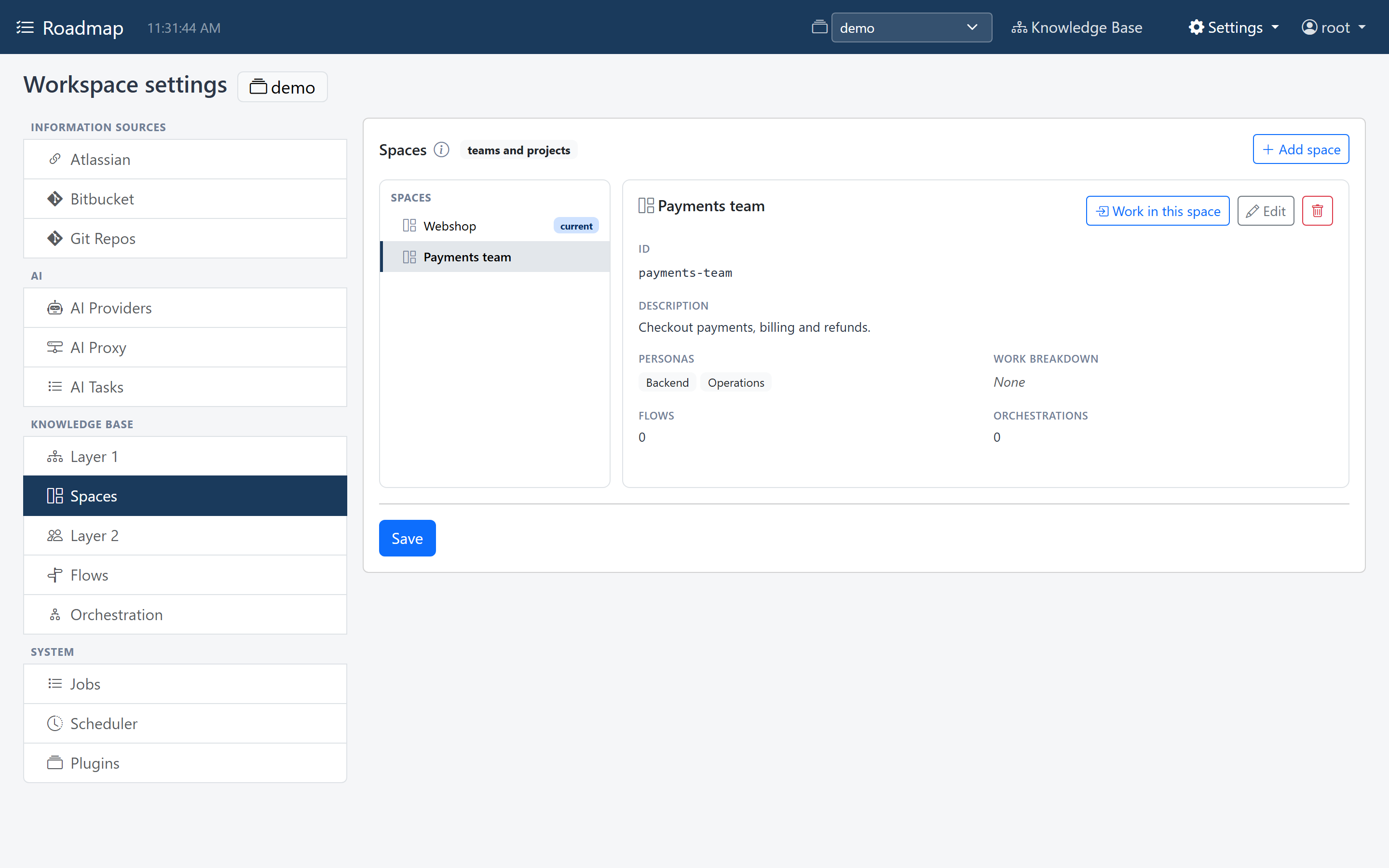
Spaces are set up under Workspace settings → Knowledge Base → Spaces, and that needs the admin role. On the left are the spaces, with current next to the one you are in; on the right, the selected space: its id, its description, its personas and work breakdown, and how many flows and orchestrations it has.
Add a space
Click + Add space, give it a Name, such as Payments team, and a Description of the team or project, and click Save. That stores it straight away. A name already in use is refused: There is already a space named "...".
A new space gets an id made from its name, shown under the form: Payments team
becomes payments-team. The id can't change later; renaming the space keeps it.
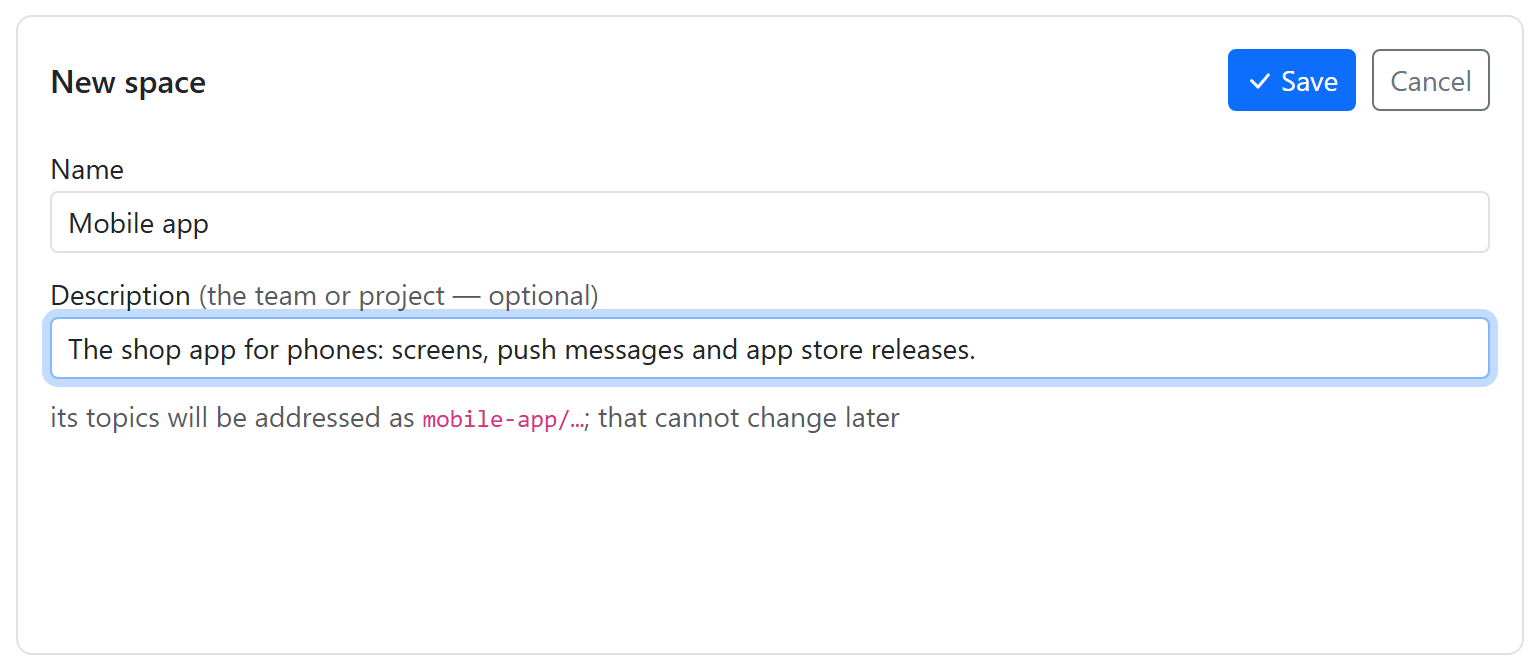
A new space starts empty. Give it personas and topic types, or install a pack in it.
Work in a space
Layer 2, Flows and Orchestration edit the space you are in. Once there are two or more spaces, a space picker at their top switches space. On the Spaces tab, Work in this space does the same for the selected space.
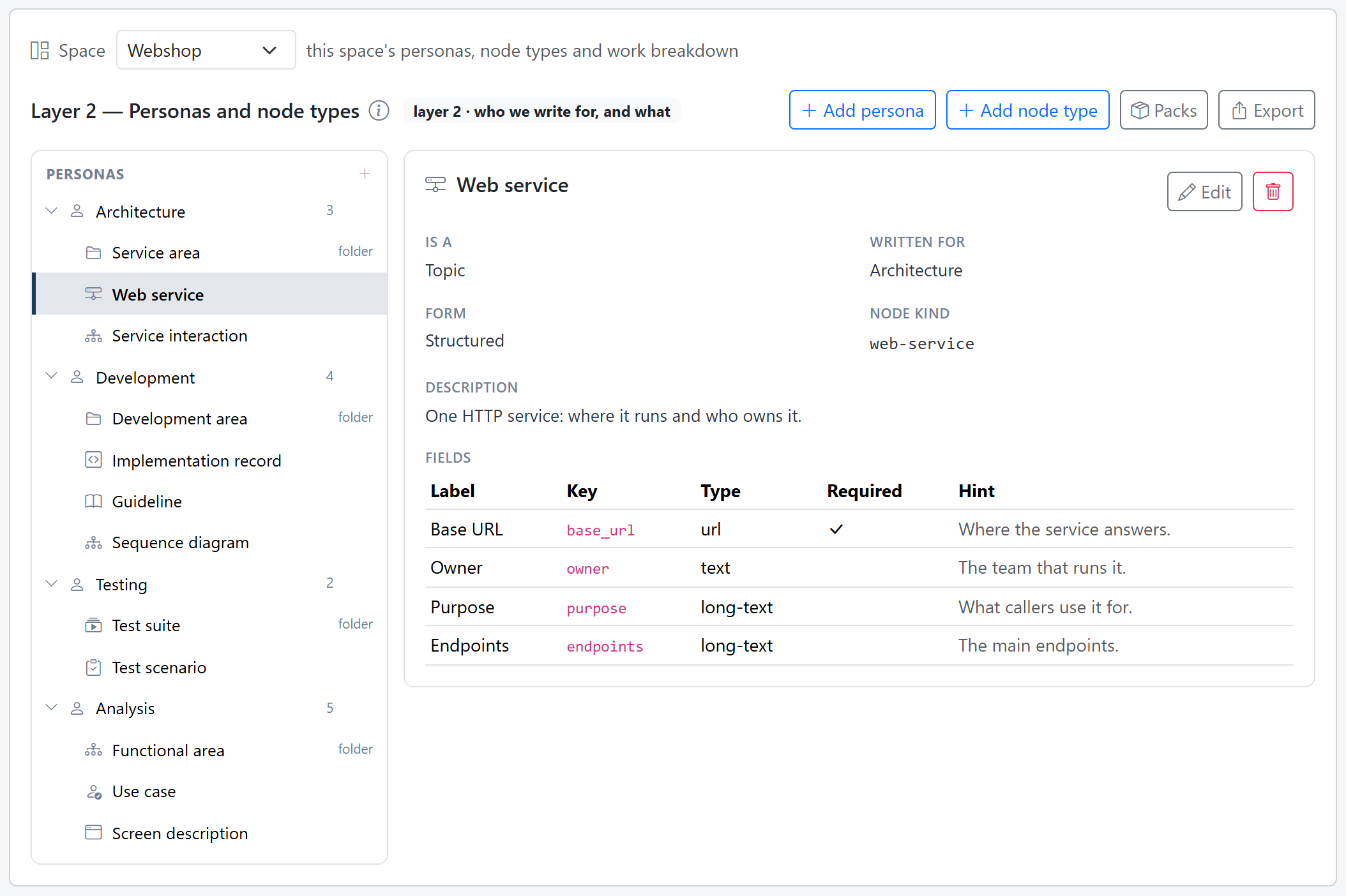
Remove a space
Select it, click the trash button next to Edit, and confirm. Its personas, topic types, flows and orchestrations go with it, and so do the topics written in it, its branches, its orchestration runs and its chats. The other spaces and the shared sources are not touched. The last space can't be removed.
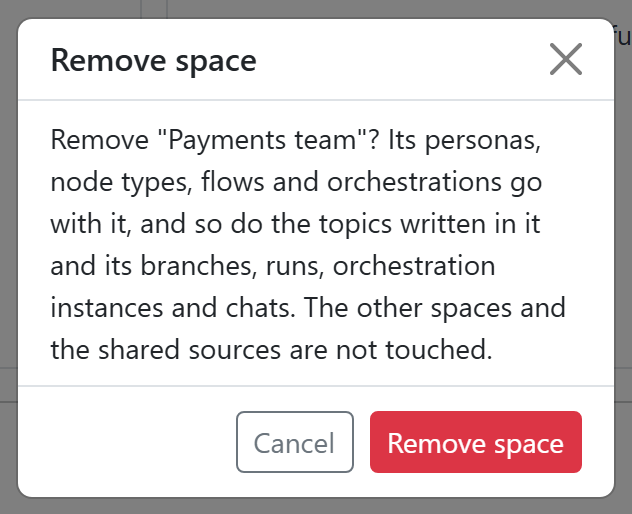
From before spaces
A Knowledge Base from before spaces becomes one space, General (id general),
the first time the new version starts. Everything it held is kept, in that space.