Installing packs
A pack is a ready-made set of personas, the topic types written for them, and the types of work that go with them. Install one instead of setting everything up yourself, then adapt what it gives you: a persona or topic type from a pack is changed and removed like any other (see Set up personas and Add a topic type).
Packs are published in a pack registry, the way plugins are in the plugin registry. Installing one only adds personas and types to the configuration; it doesn't install any code. Installing a pack needs the admin role. A pack is installed into the space you are in: a new space, like a new workspace, starts empty.
The packs
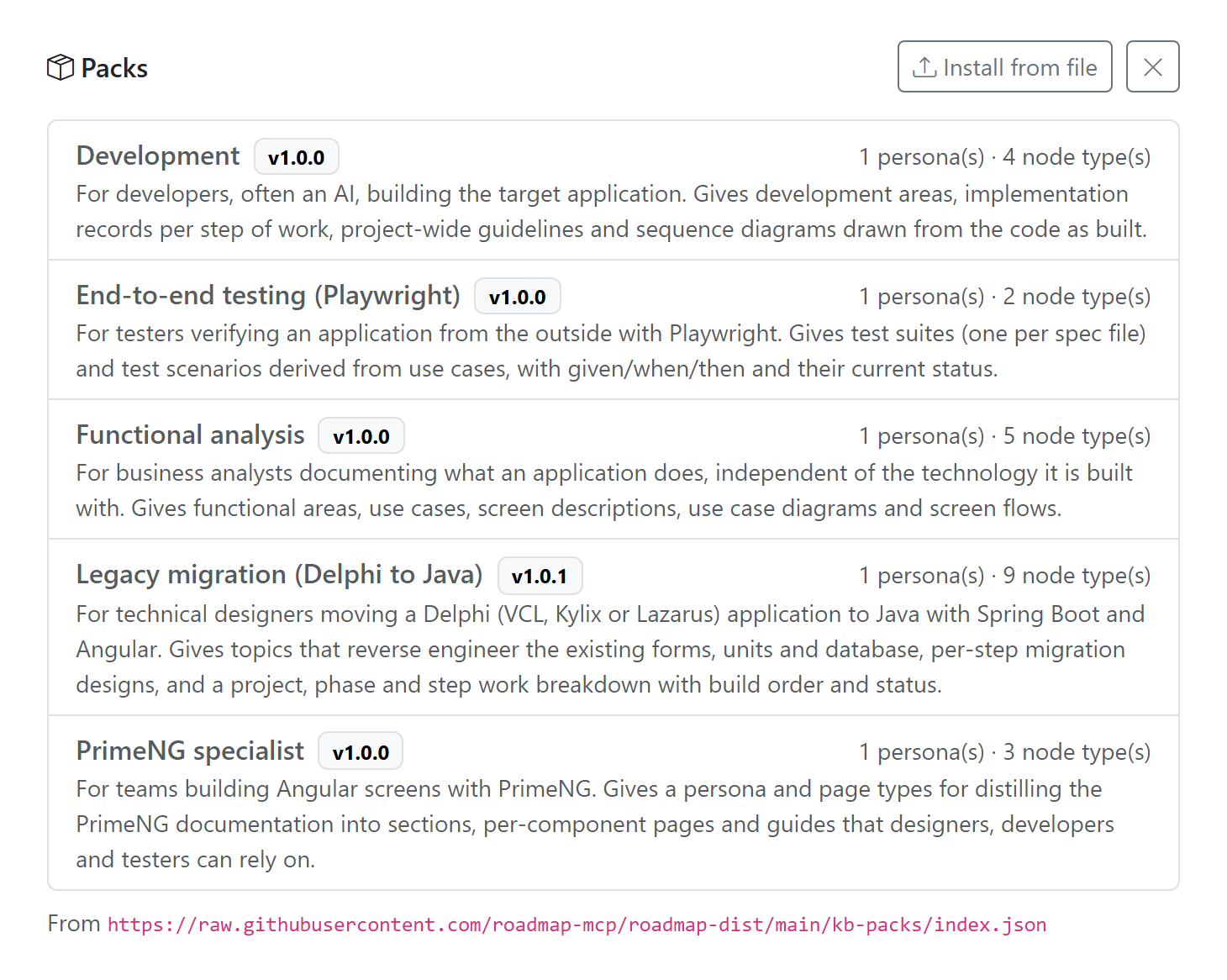
| Pack | Persona | What it holds |
|---|---|---|
functional-analysis Functional analysis |
Analysis | functional areas, use cases, screen descriptions, use case diagrams, screen flows |
legacy-migration Legacy migration (Delphi to Java) |
Technical design | reverse-engineering topics (screens, units, database) and migration designs, plus a work breakdown of migration project, phase and step, with a seven-state lifecycle for a step |
development Development |
Development | development areas, implementation records, guidelines, sequence diagrams |
e2e-testing End-to-end testing (Playwright) |
Testing | test suites and test scenarios |
primeng-specialist PrimeNG specialist |
PrimeNG specialist | sections, components, guides |
Install a pack in the settings screen
-
Go to Workspace settings → Knowledge Base → Layer 2 and click Packs. The registry's packs are listed, each with its version, description and how many personas and types it holds.
-
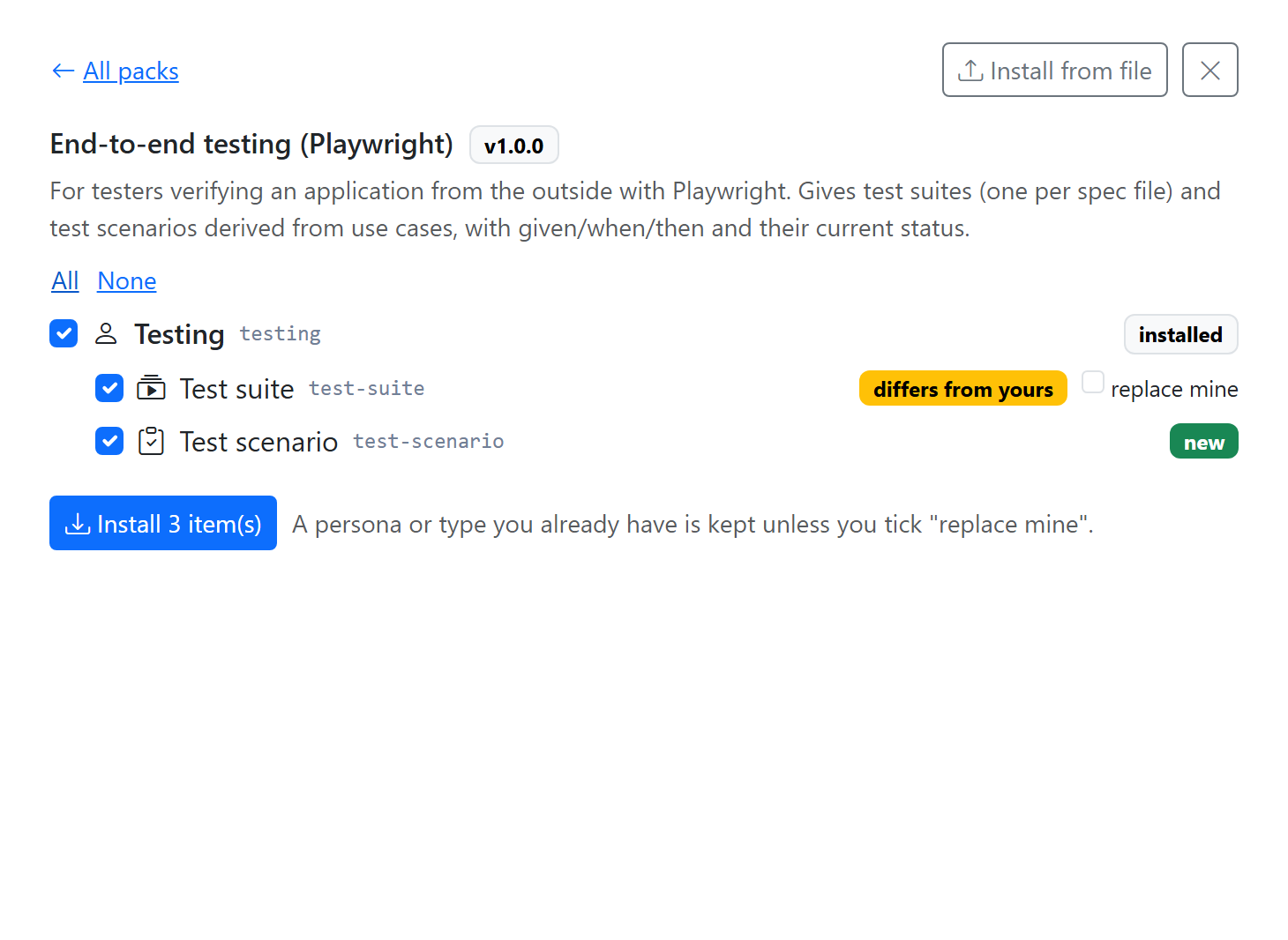
Open a pack. Every persona and type in it has a checkbox, and a state:
- new: you don't have it yet;
- installed: you have it, the same as in the pack;
- differs from yours: you have one with the same id, but it isn't the same.
-
Tick what you want. The whole pack is ticked to start with; All and None tick or untick everything. Ticking a type also ticks what it needs: its persona and the work types above it. Unticking a persona or a work type unticks what depends on it.
-
Click Install N item(s). The result says what happened, such as 2 installed or 1 kept as you had them, and the ticks are cleared.
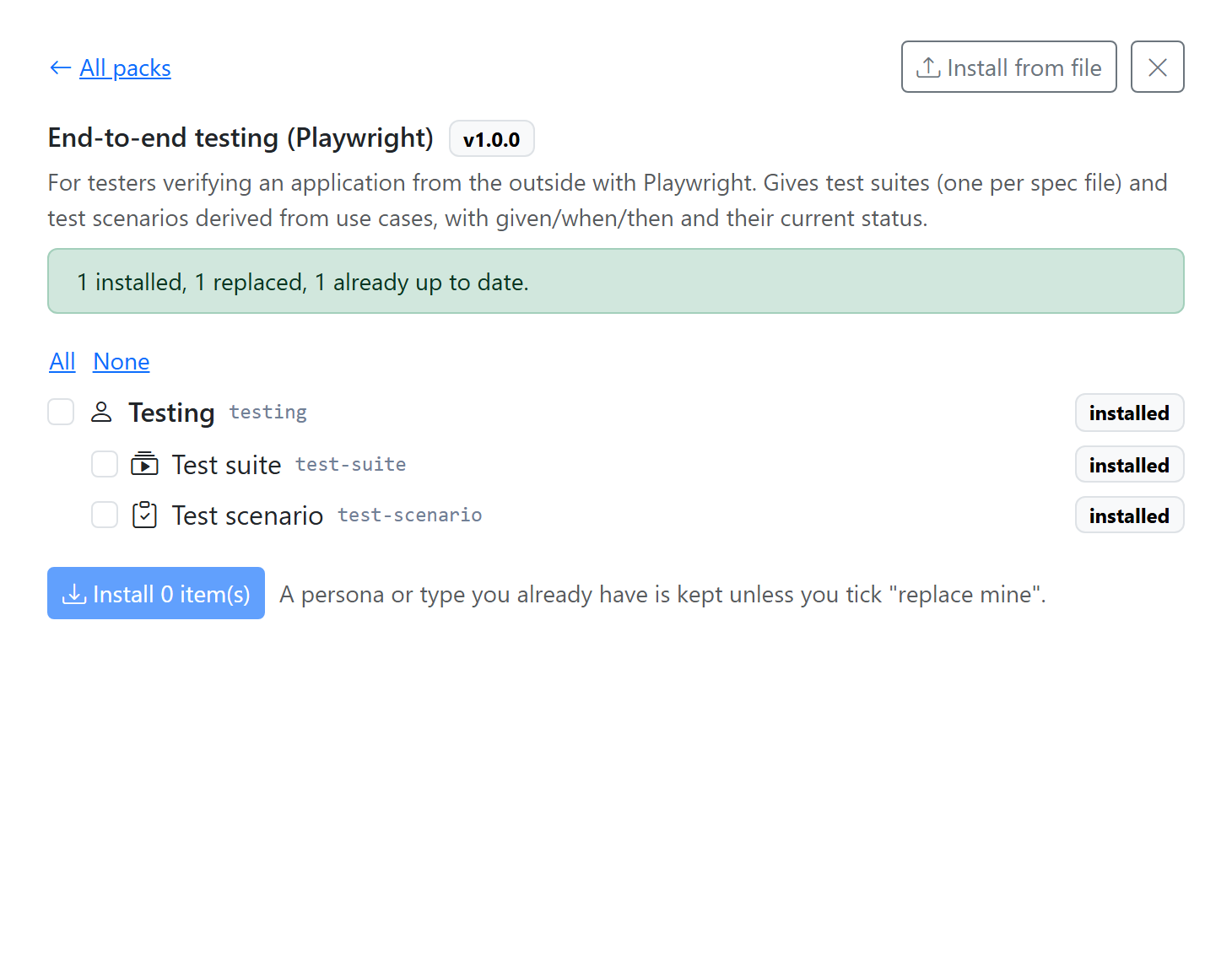
A persona or type you already have is kept as you have it, unless you tick replace mine on it. A replaced persona keeps its place in the order of the lanes.
Install from file installs a pack file from your disk the same way: it shows the same list and states. A file that isn't a valid pack is refused with the reason, for example a type written for a persona the pack doesn't carry.
Export your own pack
Export, in the Layer 2 header, writes personas and types you have as a pack:
- Fill in a Name, an Id (filled in from the name), a Version and a Description.
- Tick the personas and types to include. What a ticked type needs, its persona and the work types above it, goes in too.
-
Click Download pack. You get
<id>.json.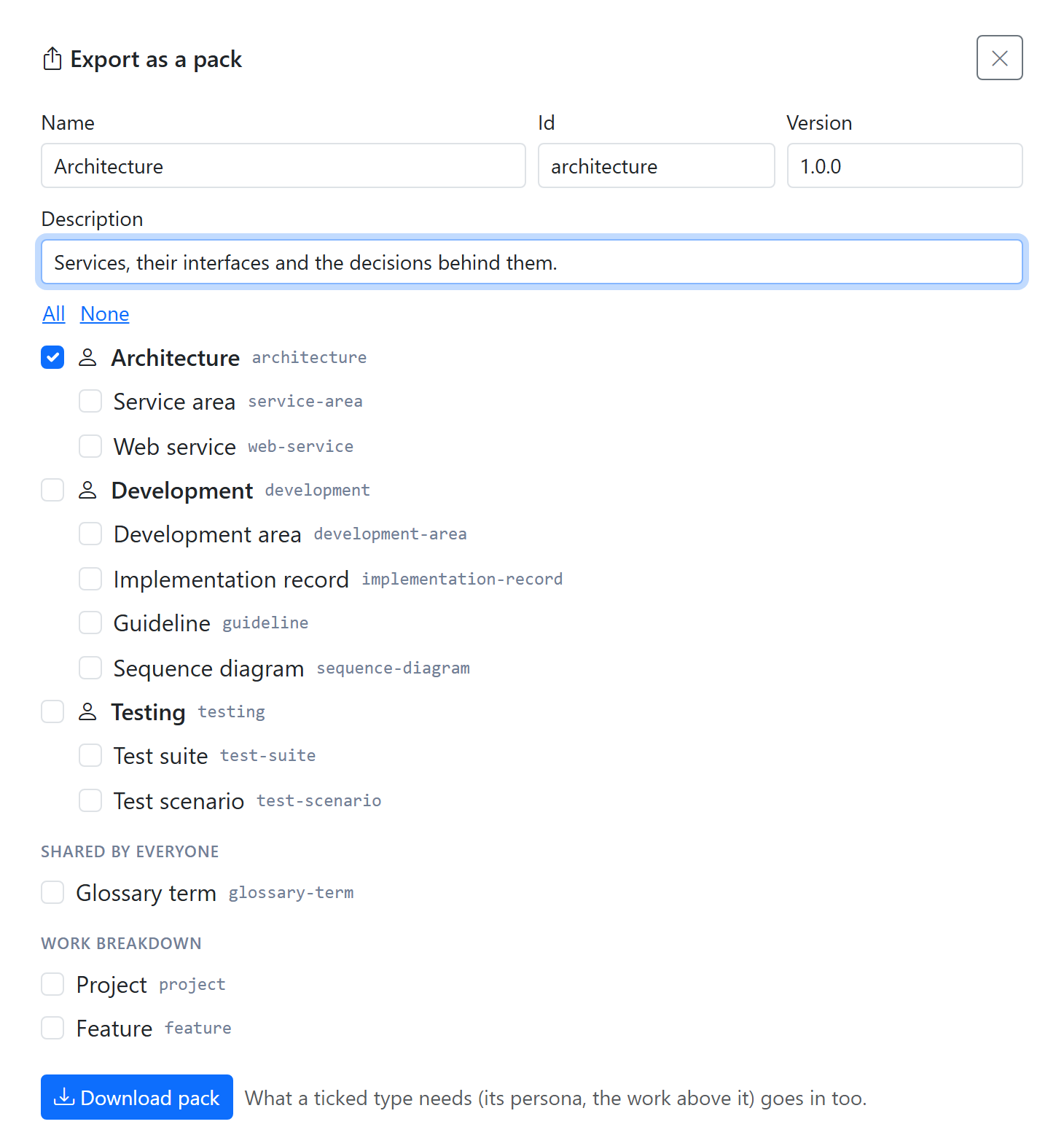
Install it in another space or workspace with Install from file, or share it.
Another pack registry
The app reads the registry at
https://raw.githubusercontent.com/roadmap-mcp/roadmap-dist/main/kb-packs/index.json.
To use another one, set ROADMAP_KB_PACK_REGISTRY_URL before you start Roadmap (see
Environment variables).