Plugins
Roadmap is built on a plugin framework. Everything you use, from the Knowledge Base to the MCP server and every information source, is a plugin; the framework underneath discovers the installed plugins, starts them in the order their dependencies need, and gives them a shared configuration, settings screens, encryption and workspaces. An edition is the framework plus the plugins it bundles.
flowchart TB
  subgraph Framework
    R[Plugin runtime<br/>discovery, lifecycle] --- X[Extension and<br/>service registries]
    X --- C[Configuration,<br/>workspaces, encryption]
  end
  subgraph Plugins
    S[settings] --- M[mcp] --- KB[knowledgebase]
    G[gitrepos] --- A[atlassian] --- B[bitbucket]
  end
  Framework --> Plugins
  Plugins --> APP[Roadmap edition]
The plugin model
- A plugin is a Python package the framework discovers at startup. It says which other plugins it requires, and the framework activates them in that order.
- A plugin can declare extension points and contribute extensions to points declared elsewhere. The flow runner, for example, declares the readers a flow can read its source with, and every plugin registers its tools on the MCP server.
- A few plugins are core: always on, and they can't be uninstalled. In Pro those are Settings, the MCP server and Users.
- The frontend mirrors this: each plugin adds its own pages, settings tabs and item types to the app.
- Plugins are enabled per workspace: one server serves several teams, each with its own configuration and data. See Plugins per workspace for the screens that manage them.
Plugins per edition
Pro
Bundled: installed and enabled in every Pro install. The ids are the ones the registry and Server administration → Plugins show.
| Plugin | What it adds |
|---|---|
roadmap.knowledgebase |
The Knowledge Base: the ground-truth graph (Layer 1), topics per persona (Layer 2) defined by topic types and packs, flows, orchestrations and branches; its page, its settings, and the kb_* MCP tools |
roadmap.knowledgebase.flows |
Runs Knowledge Base flows on the server with your AI provider. Without it, flows are handed out as briefs for an external AI to carry out |
roadmap.mcp |
The MCP server, which every plugin registers its tools on: SSE at /mcp/sse and stateless HTTP at /mcp (see The stateless endpoint). Core |
roadmap.gitrepos |
Git Repos: the repositories, each a name and a folder, and the checkout folders that say where they are on the server and on users' machines |
roadmap.atlassian |
The Jira and Confluence connection, under Information Sources, offered as a Layer 1 source. Jira issue and Confluence page nodes can be opened and refreshed through it, which pulls their title and an excerpt |
roadmap.bitbucket |
The Bitbucket connection, under Information Sources, offered as a Layer 1 source. Its nodes are pointers, as an agent or a flow wrote them |
roadmap.ai |
The AI providers |
roadmap.jobs |
Background jobs with a status and a log, such as flow runs, shown under Workspace settings → System → Jobs |
roadmap.scheduler |
Scheduled tasks |
roadmap.settings |
The settings screens. Core |
roadmap.users |
Users and roles: the root user, signing in, the Users tab, Personal settings, and API tokens. Core |
Roadmap doesn't sync or crawl any source: Layer 1 nodes are written by agents and flows. Only Atlassian nodes can be opened and refreshed from Roadmap.
Extra: in the registry, installed from Server administration → Plugins.
| Plugin | What it adds |
|---|---|
roadmap.trello |
The Trello connection and its boards, under Information Sources, offered as a Layer 1 source. Its nodes are pointers, as an agent or a flow wrote them |
Lite
To be released soon.
Managing plugins
Managing plugins needs the admin role, and happens in two places, both under the Settings menu in the header:
- Server administration → Plugins installs plugins, for the whole server.
- Workspace settings → System → Plugins turns them on or off in one workspace (see Plugins per workspace).
A fresh install has every Pro plugin installed and enabled. Optional plugins, such as Trello, install from the registry:
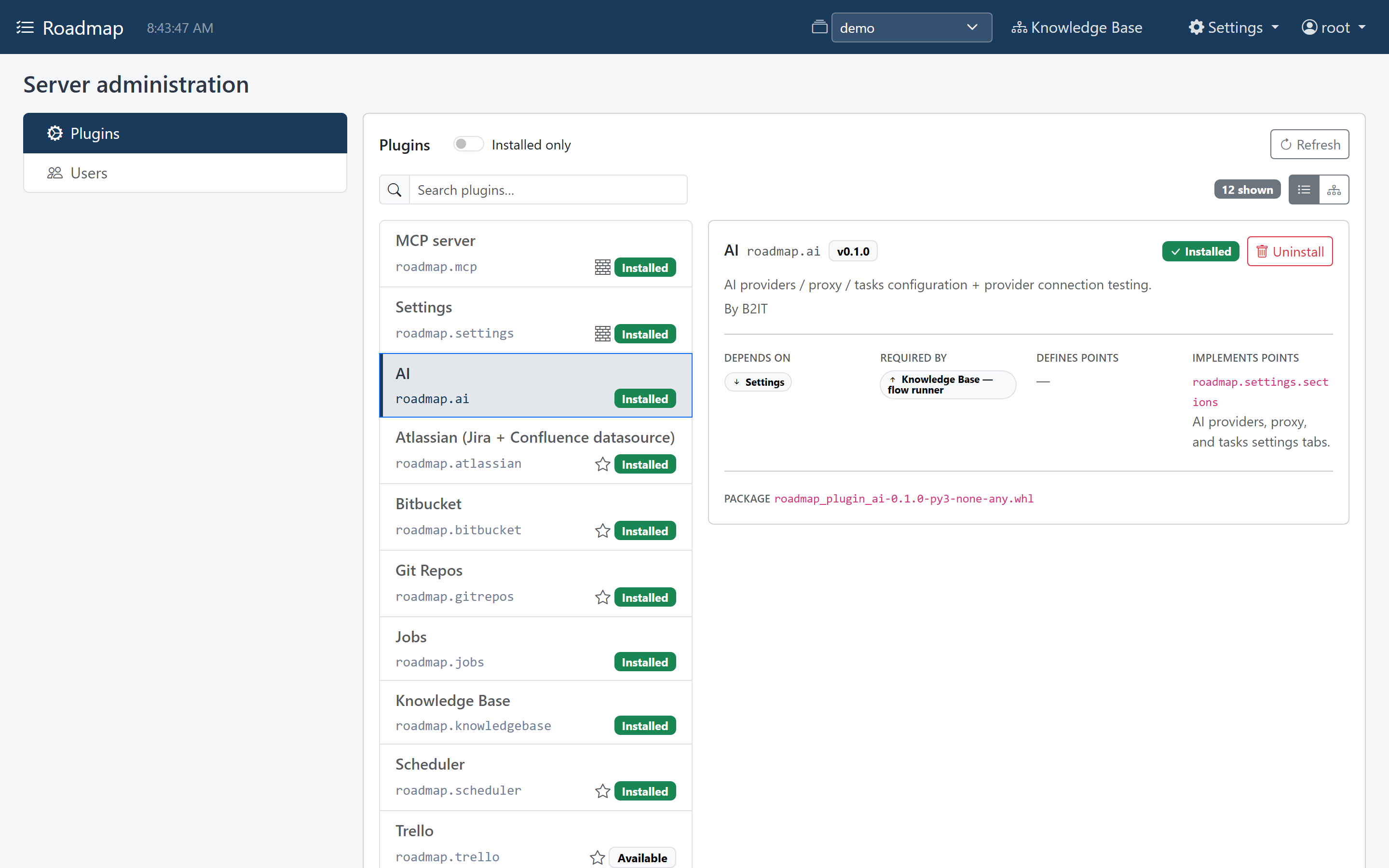
-
Go to Server administration → Plugins and select the plugin.
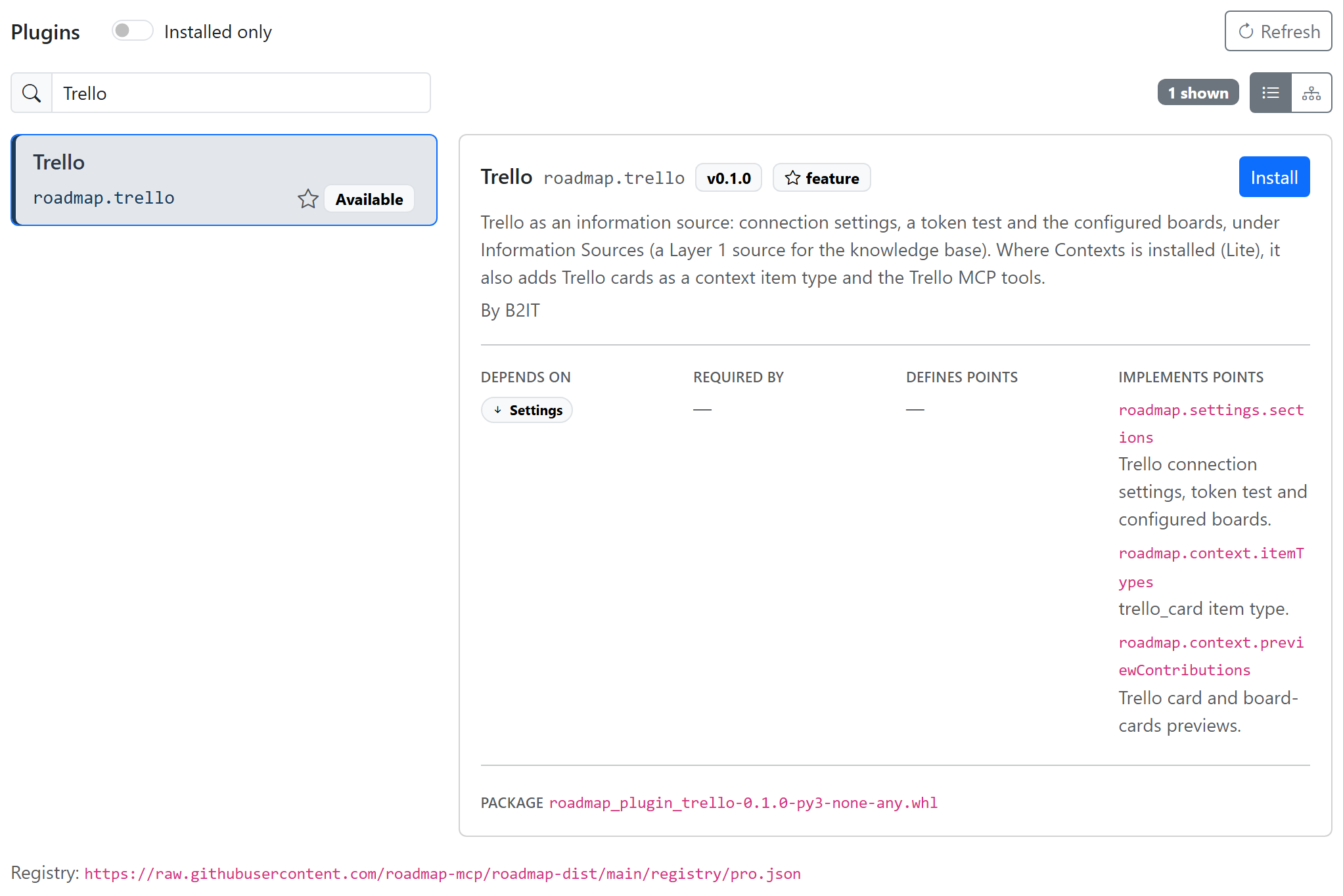
-
Click Install. Its badge changes to Restart.
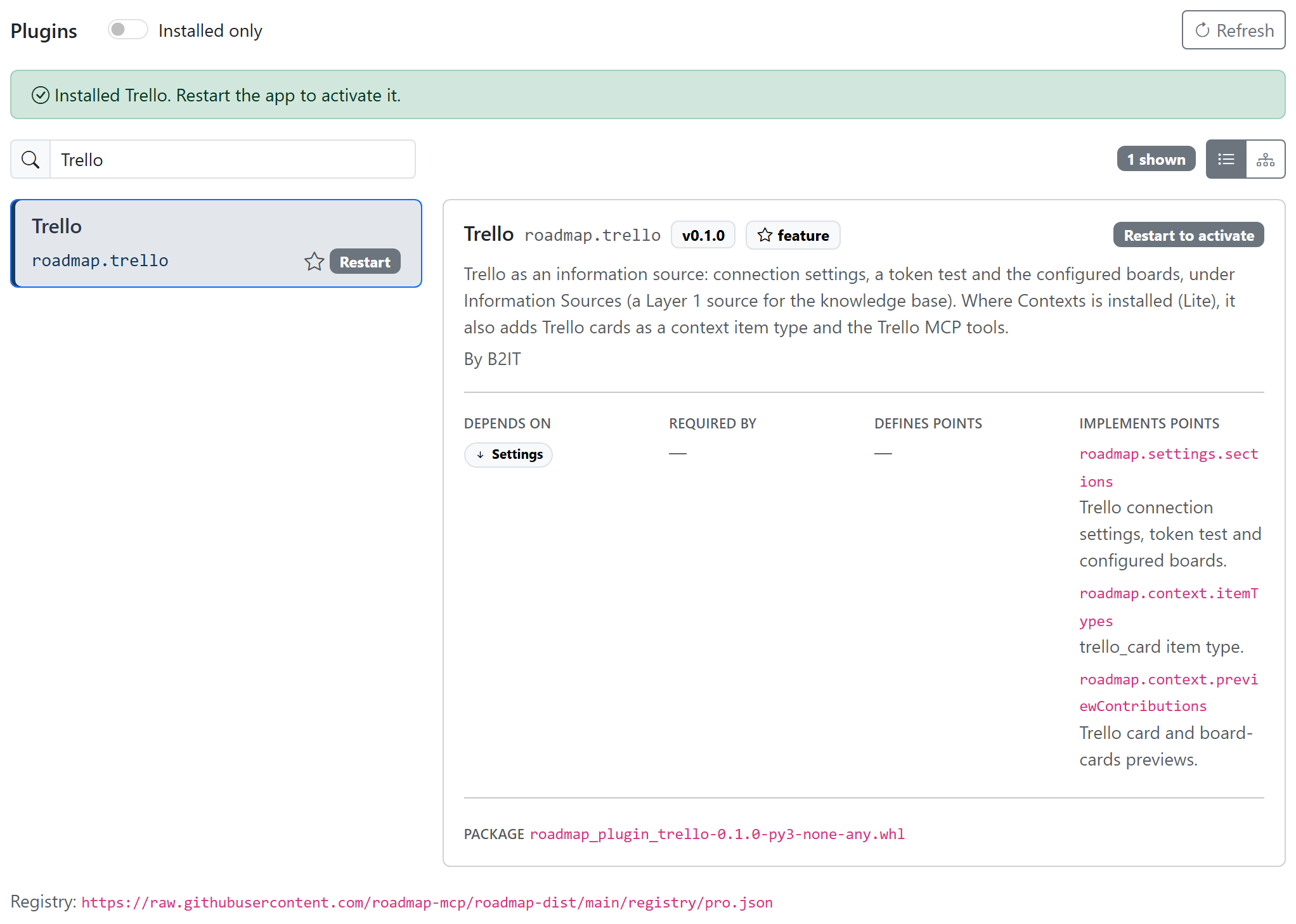
-
Restart Roadmap: press Ctrl+C in its terminal, then start it again with
start.batorbash start.sh.
After the restart the plugin shows as Installed and is on in the workspace. Trello, for example, then has its own tab under Workspace settings → Information Sources, and the Knowledge Base can use it as a source.
Three plugins are core: Settings, MCP server and Users. They are always on, in every workspace, and can't be uninstalled; Workspace settings → System → Plugins shows them as core · always on.
Plugins per workspace
Installing a plugin is for the whole server, but each workspace turns plugins on and off for itself. One workspace can use Trello while another doesn't, for example. A plugin that is off in a workspace has no pages, settings tabs or MCP tools there.
- Switch to the workspace in the header.
- Go to Workspace settings → System → Plugins, titled Plugins in workspace and the workspace's name.
- Turn plugins on or off, and click Save & reload.
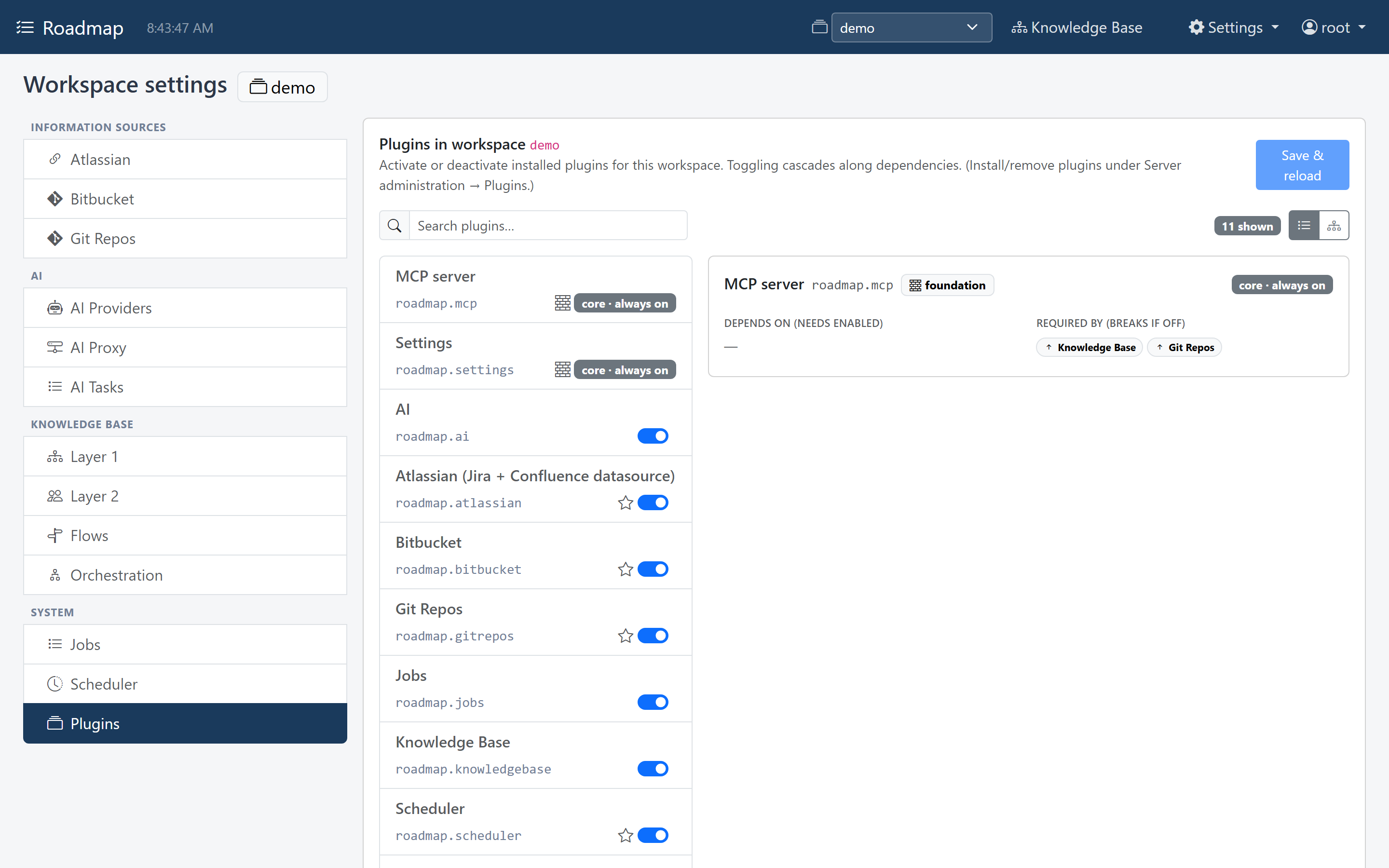
Until you save that list for a workspace, every installed plugin is on in it, including ones you install later. Once you have saved it, a newly installed plugin starts off in that workspace: turn it on there. The core plugins are always on.
The two Plugins screens
The server's and the workspace's Plugins screens work the same way:
- Search filters the plugins by name or id, and shows how many match.
- List and Graph switch between a list and a dependency graph. The graph asks before drawing more than 40 plugins, so narrow the search first.
- A plugin is marked feature when nothing depends on it, and foundation when it depends on nothing. Select one to see what it depends on and what it is required by.
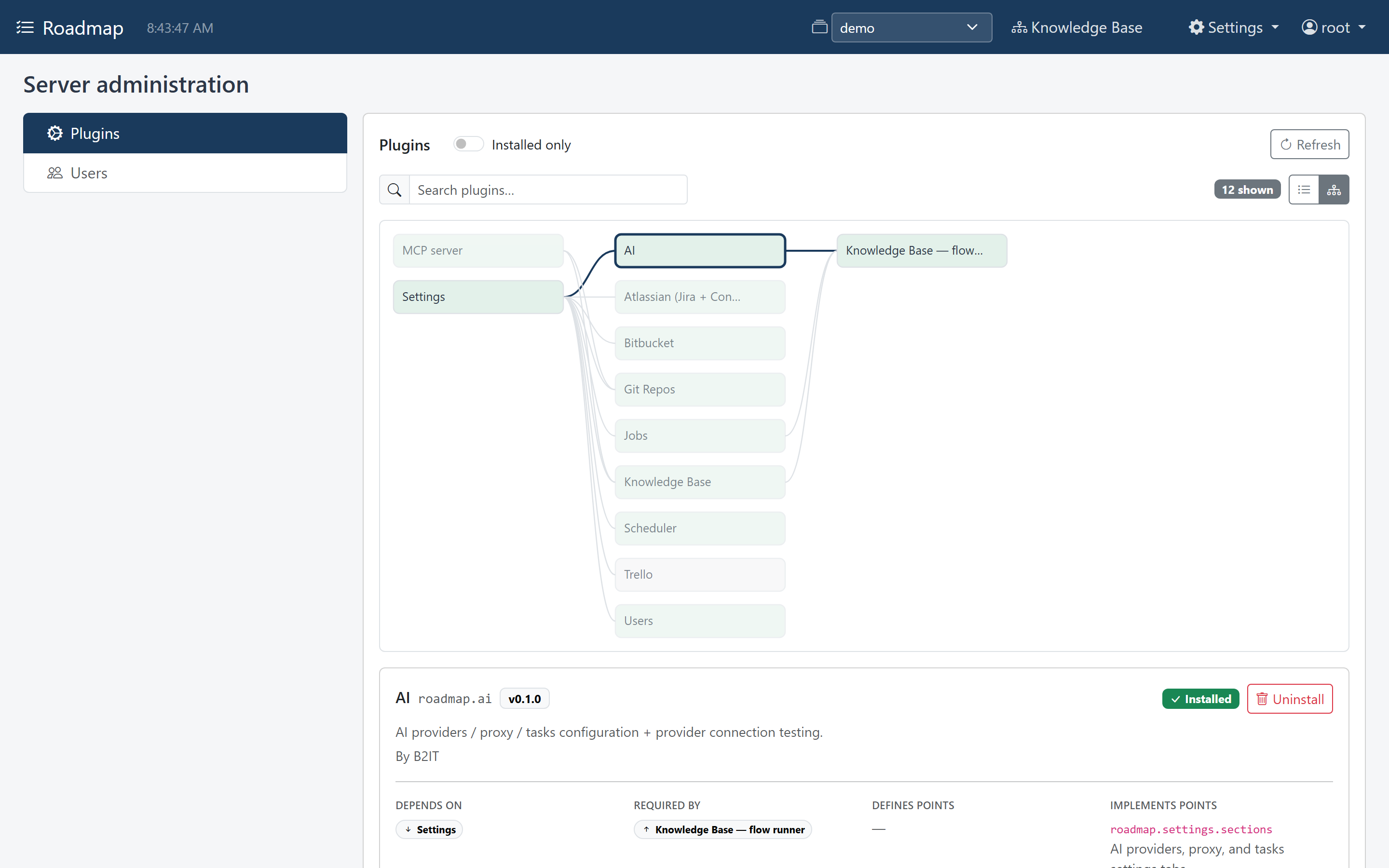
Turning a plugin on in a workspace also turns on everything it depends on. Turning one off also turns off everything that depends on it. A note names each plugin that changed along with it.
