Your account and API tokens
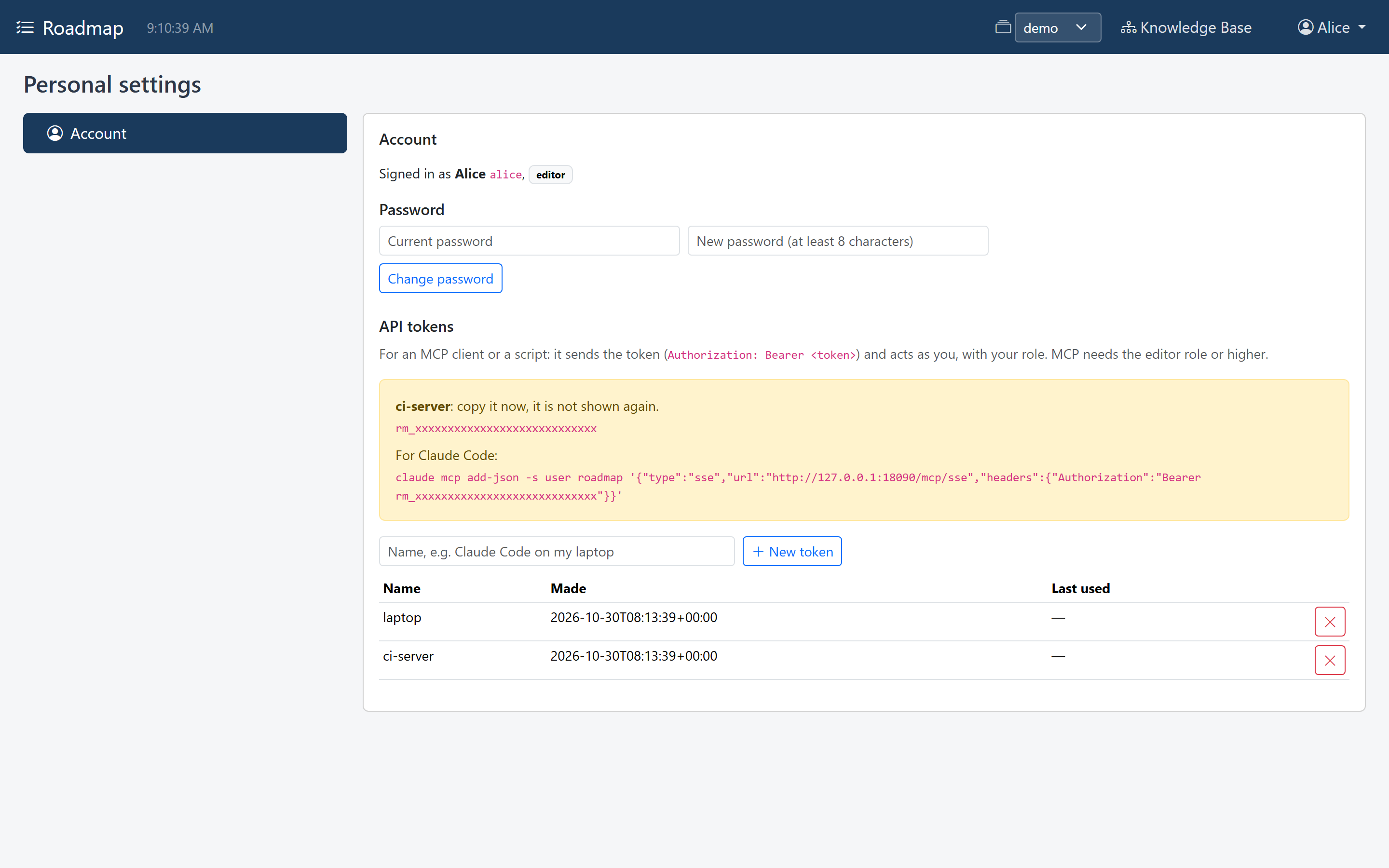
Personal settings is where every user, whatever their role, changes their own password and makes API tokens. Open it from the user menu: your name, at the right of the header. Its Account tab starts with who you are signed in as, and your role.
Change your password
Enter your Current password and a New password of at least 8 characters, and click Change password.
If you have forgotten it, ask an admin to set a new one (see Managing users). For the root user, see A forgotten root password.
API tokens
An AI client or a script can't sign in. It sends an API token instead, and acts as you, with your role. MCP needs the editor role or higher: a viewer's token reads the HTTP API only, and the Account tab says so when a viewer makes one.
Make a token
- Under API tokens, give the token a name that says where it is used, such as Claude Code on my laptop.
- Click New token.
-
Copy the token now: it is shown once, and never again. Below it is a ready-made command to add Roadmap to Claude Code with it:

claude mcp add-json -s user roadmap '{"type":"sse","url":"http://127.0.0.1:8090/mcp/sse","headers":{"Authorization":"Bearer <token>"}}'The command uses the address you opened Roadmap on. For another client, see Connect an AI client.
Make one token per client or machine: then you can revoke one without the others.
The token list
The list shows each token's name, when it was made, and when it was last used. The
token itself isn't shown. Revoke (the x button) stops a token at once: a client
using it is refused with 401 login_required until it has a new one.

Using a token
Send it as a header:
A client that can't set a header can add ?token=<token> to the URL instead.
A token stays valid until you revoke it, or an admin removes your user. Changing your password doesn't revoke it. Treat it like a password: anyone who has it can do what you can.